
Can a Customer Edit or Delete a Google Review?
Only the person who wrote it can edit or delete a Google review. The steps, what readers see after an edit, what happens to your reply, and how to ask for an update without breaking Google's rules or UK law.

Yes. A customer can edit a Google review or delete it at any time: on a computer from Your contributions in Google Maps, or from their profile in the Maps app. The business cannot. An owner can reply, report a review that breaks Google's policies and, once a problem has been put right, politely ask the customer whether they would like to update what they wrote.
Below: the steps, what changes after an edit, how far a business may go in asking for one, and a message you can adapt. This summarises Google's rules and UK law; it is not legal advice.
How to edit a Google review, step by step
Google's help page on adding, editing and deleting reviews gives one route for each device. On a computer:
- Open Google Maps and click the Menu icon in the top left.
- Click Your contributions, then Reviews.
- Next to the review, click More (the three dots).
- Choose Edit review or Delete review and follow the steps on screen.
In the Google Maps app on Android, iPhone or iPad, tap Contribute, then View your profile, scroll down, tap See all reviews and tap More next to the review. The same two options appear.
An edit can change the star rating, the text and the photos. Google's help mentions no time limit: a review stays up until its author takes it down, unless Google removes it for breaking a policy.
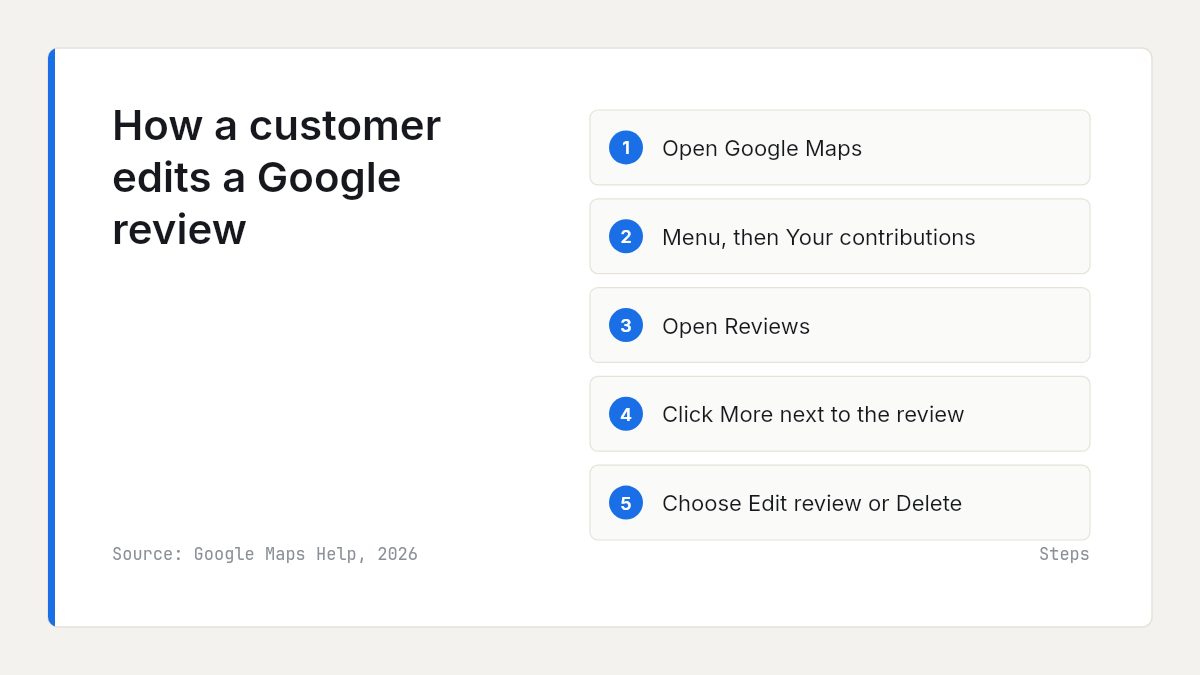
These are the steps to send a customer who asks how to edit a Google review. If you are the customer, our guide on how to write a good Google review covers what makes an update useful.
What readers see after a review is edited
The clearest change is the date. Google says that when you edit a review, the date of the last edit shows as the review's post date. Readers cannot see the original date or wording.
Some edited reviews now also carry an "Edited" label under the reviewer's name. Sterling Sky, a local search consultancy, described the label in September 2026 and noted that Google did not show it before. Google's own help pages do not mention it, so do not count on every reader seeing it.
So an old complaint updated today reads as fresh news, and its new rating replaces the old one in your average. Our guide to how Google sorts reviews explains where recent reviews appear.
What happens to your reply
Your reply stays exactly as you wrote it. Google's help page on managing reviews says customers can still change their review after reading your reply, and that the review's date then changes. It says nothing about your reply changing, and in Sterling Sky's examples it does not, so a reply can end up answering a complaint that is no longer there.
Google does not say it alerts you to edits, and Sterling Sky reports that businesses are not notified. So check your reviews every week or two, sorted by newest, and update your reply when one changes: in your Business Profile, select Read reviews, then Edit under your reply, then Update. "Thank you for coming back to update this, and for letting us put it right" closes the loop.
If a customer deletes the review instead, it disappears from your profile and its rating stops counting towards your average.
Why a business cannot edit or delete a Google review
A review belongs to the person who wrote it. Google's Maps help says you cannot directly delete someone else's review; you can only flag it. Owners get a reporting route of their own, but Google's page on reporting reviews says only reviews that violate its policies are eligible for removal, and that Google does not get involved in conflicts between businesses and customers.
| Who can do what | Customer who wrote it | Business owner |
|---|---|---|
| Change the stars, text or photos | Yes, at any time | No |
| Delete the review | Yes, at any time | No |
| Reply publicly under the review | Not applicable | Yes, and edit or delete the reply later |
| Report it to Google | Yes, by flagging it | Yes, for a policy breach, with one appeal |
| Ask for an update after a fix | Not applicable | Yes, once, with no reward or pressure |
Can you ask a customer to edit a Google review?
Yes, if you have genuinely put things right and you ask without reward or pressure. Google's own tips on replying to reviews say a positive reply and follow-up can show that you care and may encourage a reviewer to update their review. The Competition and Markets Authority's fake reviews guidance says encouraging reviews without predetermining their content or sentiment is not prohibited.
The lines you must not cross:
- No reward for changing it. Google's help says offering incentives, such as free or discounted goods or services, for customers to change reviews or remove negative ones is strictly prohibited. The CMA's examples of unlawful commissioning include offering a refund or gift card to a customer if they remove the negative commentary from their review.
- No conditions on the fix. A refund or return visit must not depend on the review; the CMA warns against making dispute resolution contingent on a customer not leaving a negative review.
- No pressure. Google's content policy says businesses should not require or pressure people to leave ratings or reviews. Ask once, in private, and accept the answer.
- Ask for an update, not a deletion. A review saying the problem was sorted properly is more useful, and more believable, than a gap where a complaint used to be.
Under the Digital Markets, Competition and Consumers Act 2024, commissioning a fake review, or one that conceals an incentive, has been banned since 6 April 2025, and commissioning includes incentivising by any means. A review updated freely because the experience changed is still genuine; one updated for a refund is not. Our guide to review incentives in the UK covers the grey areas.
A polite follow-up after you put things right
Send it only once the problem is fixed and the customer has said so, from a named person, through the channel they already use with you. Recover the customer first: our guide to turning one-star reviews into opportunities covers the phone call and the fix.
By text or WhatsApp:
Hi [first name], it's [your name] from [business]. Thanks again for letting us put the [problem] right last week. If you feel your Google review no longer reflects how things ended, you're welcome to update it, but there's no obligation at all. Either way, your feedback helped us change how we [process].
By email, add the steps, since few people know where to find their own reviews:
If you'd like to update it, open Google Maps and go to Your contributions, then Reviews (on a computer), or Contribute, then View your profile (in the app), and choose More next to your review. If you'd rather leave it as it is, that's completely fine.
What not to write:
- "Now that we've refunded you, could you take the review down?" ties the fix to the review.
- "Would you mind changing it to five stars?" sets the rating for them.
- "We'll send you a voucher once it's updated" is an incentive.
- A second or third reminder is pressure.
Some customers will update and some will not; that is their right. Your edited public reply does the job for readers either way.
When the review is false, not out of date
Asking only makes sense with a real customer whose experience has changed. If the review is fake or breaks Google's rules, report it instead: our guides to removing a false Google review and responding to a fake review cover the report, the appeal and the reply. And never track down a reviewer you cannot match to your records; our guide on whether a business can see who left a Google review explains why.
Why one updated review matters on a small profile
Most owners rarely need to ask. In the 524,000 recent Google reviews we analysed across 130 local markets in the UK and Australia, 87% were five-star and 5% were one-star, and only 53% of one-star reviews had an owner reply.
On a small profile, one review moves the average. A quarter of the 46,800 local businesses we track across the UK and Australia have eight or fewer Google reviews. For a business with eight reviews, a one-star review that becomes a five-star review adds four stars to the total and lifts the average by half a star. With 150 reviews, the same change moves it by about 0.03.
Whether or not a review changes, later readers judge you on your reply; our guide on how to respond to negative Google reviews has a structure for it. To see whether a complaint is yours alone or common across your market, a Rate My Ratings market report shows each competitor's rating, review count and share of positive reviews, and the themes customers praise and complain about across the category and area.
The short version
- Only its author can edit a Google review or delete it, at any time, from Your contributions in Google Maps.
- An edit shows the date of the latest edit, and sometimes an "Edited" label. Your reply stays as written, so update it.
- A business cannot edit or delete reviews: it can reply, report a policy breach, or ask.
- Once a problem is genuinely fixed, ask once, in private, with nothing offered and nothing depending on the answer.
Frequently asked questions
- Can a business owner delete a bad Google review?
No. Only the person who wrote a review can edit or delete it. A business can report a review that breaks Google's policies, such as a fake review, a conflict of interest or abuse, and Google removes it only if it finds a violation. Evaluation typically takes several days, with one appeal. For an honest negative review, the owner's best tool is a calm public reply.
- Does Google show when a review has been edited?
Google's help pages say the date of the latest edit replaces the review's original post date. Some reviews also show an "Edited" label under the reviewer's name, which local search specialists reported in September 2026, although Google has not documented it. Readers cannot see the original date or what the review said before it was changed.
- Is a business notified when a customer edits a review?
Google's help pages do not say so, and local search specialists report that businesses are not notified when a review is edited. Read your reviews regularly, sorted by newest, so you spot changes. When a review has been updated, edit your reply to match: from your Business Profile, open Read reviews, select Edit under your reply, then select Update.
- Is it legal to ask a customer to change a negative review in the UK?
Asking politely, once, after you have resolved the complaint is allowed: the CMA says encouraging reviews without predetermining their content or sentiment is not prohibited. What crosses the line is offering a reward, such as a refund or gift card, for removing negative comments, or making the resolution depend on the review. Google bans any incentive to change or remove reviews.

Rate My RatingsNewsletter
What reviews say about local markets, in your inbox.
New articles and findings from the blog, as they're published.
Check your inbox.
If this address isn't subscribed yet, we've sent it a link to confirm. Nothing is sent until you click it.
That didn't go through. Check the email address and try again.
Hold on a moment, then subscribe again.
Rate My RatingsNewsletter
What reviews say about local markets, in your inbox.
New articles and findings from the blog, as they're published.
Check your inbox.
If this address isn't subscribed yet, we've sent it a link to confirm. Nothing is sent until you click it.
That didn't go through. Check the email address and try again.
Hold on a moment, then subscribe again.